When GarageBand was updated to GarageBand 10, some of the intuitiveness was lost in that there was no longer a Podcast button for creating that type of audio file. While you can still create audio pods casts, you can not longer create enhanced podcasts. So, now that the students and teachers are using Mavericks, they are using GarageBand 10, and so will have to relearn navigating GarageBand in order to make audio files that can be uploaded to podcast sites like podbean, audioboom, or sound cloud. To that end, I have created a video tutorial and an a set of instructions that can be printed out that will help users transfer their skills and make the new GarageBand work for them. Enjoy!

Tuesday, October 14, 2014


Friday, October 10, 2014
PixiClip: Great Web-based Whiteboard Tool
Today, I go to the staff meeting at Mt. Ararat Middle School and one of the teachers sends me an email saying that he would like for his students to do some Khan Academy-style videos on how to do certain math problems. At his former school they had iPads and so used "Explain Everything" for this type of activity. Was there something like "Explain Everything" that could be done on a MacBook?I then remembered that one of the tools Richard showed us was PixiClip. PixiClip allows users to create and narrate drawings. It records not only the whiteboard you are drawing on, but can also capture your voice and possibly even video of you as you draw and narrate. Users can also upload pictures to the whiteboard to label. When you make a recording you can share it via social media like Facebook or Twitter, but you can also get the embed code to put into a web page, wiki, or blog. Click play on my example below.
Friday, October 3, 2014
Thursday, September 18, 2014
Using Google Classroom for Your LMS

Prior to Classroom,
 teachers would share documents with students. Often they would need to remind the students to make their own copy of the document, rename it with their student name, and then share it again with the teacher. While there were benefits to this, like teachers being able to view students work as they worked on it in real time, it was a bit of a hassle and sometimes created an organizational disaster area of the teacher's Google Drive. I think the best feature of Google Classroom is that if a teacher wants to assign students to complete a document that they have started in Google Doc or created a template for in Google Docs, they can have Google Classroom "Make a Copy for Each Student" when they create the assignment tied to that document. When this is done, each student will get to their own copy by clicking on the title of the assignment or be looking in their own Google Drive.
I could go on and on with how it works and how awesome it is, but there are a couple of well done videos that can show you all that.
Here are a couple links to pages that tell you what you can do with Google Classroom:
20 Things You Can Do With Google Classroom http://www.alicekeeler.com/teachertech/2014/09/07/20-things-you-can-do-with-google-classroom/
15 More Things You Can Do With Google Classroom
http://www.alicekeeler.com/teachertech/2014/09/22/15-more-things-you-can-do-with-google-classroom/Here is a link to another vimeo video that is well done. http://vimeo.com/101261736
If you are in need of some instructions on the use of Google Classroom, here is a link a Google Doc I created. http://bit.ly/1miFOYr
New Year, Job, School District, well everything
I recently accepted a position with MSAD#75 (Mount Ararat)
 as their MS/HS Technology Integrator. It is and understatement to say the least that I am leaving behind some great colleagues and friends. That seems to be the toughest part of changing jobs.
With that change, comes changes in how to contact me. Here are some ways to get in touch with me:
With that change, comes changes in how to contact me. Here are some ways to get in touch with me:
- email palmerr@link75.org
- Twitter @ryanpalmerME
- Text ryepal@icloud.com
- FaceBook ryan.palmer.54922@fa
cebook.com
I hope you all have a great year.
Friday, December 20, 2013
Day Twenty-Five: 60-Second Civics

Day Twenty-four: 10x10


Day Twenty-Three: Wideo

Day Twenty-Two: Thinglink


Day Twenty-one: SoundCloud

SoundCloud: The Tour from SoundCloud on Vimeo.
Day Twenty: ReadWorks
 This morning a colleague shared with me her recent use of ReadWorks. As a special education teacher, she often needs to find resources that cover the topics of Middle School classes but that are written at a much lower level. She was thrilled to have discovered ReadWorks, a nonprofit organization that provides reading and reading comprehension materials to educators for free. Registering with ReadWorks was quick and easy, and in no time at all, you can be downloading lessons, reading materials, units, and worksheets that will help your students succeed. My colleague logged in, selected the non-fiction tab, then reading passages. Next, she selected a reading level and finally typed in the topic she was looking for, "immigration". The materials she found were appropriate for her 8th grades students, but were written at a 4th grade reading level. Check this out yourself to see what ReadWorks has to offer your students. Below is an introductory video about ReadWorks.
Thursday, December 19, 2013
Day Nineteen: blubbr

Wednesday, December 18, 2013
Day Eighteen: pdfEscape
 You can use PDFescape for free to edit any .pdf document that you can read. Simply upload your file, or you can enter the url of an online .pdf file, and then you can add text, free hand writing, add images, or create drawings. When you have finished altering your document, you download the finished product to use as you wish. Have your students bookmark this site, and you'll be a little closer in your journey to go paperless.
Tuesday, December 17, 2013
Day Seventeen: scrible

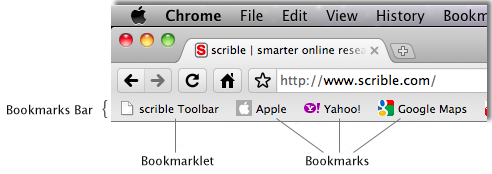 scrible also provides a bookmarklet that, when clicked, adds functionality to your browser. When the scrible Bookmarklet is clicked, it loads the scrible Toolbar atop the current webpage you're viewing so that you can start annotating.

Monday, December 16, 2013
Day Sixteen: Metta


Subscribe to:
Posts (Atom)