

Friday, October 25, 2013
Wideo: Cool Web Tool For Creating Animated Videos


Friday, May 31, 2013
Scrible: An Online Tool for Bookmarking & Annotating Web Resources

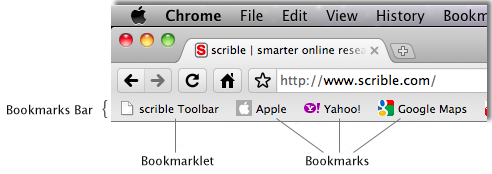 scrible also provides a bookmarklet that, when clicked, adds functionality to your browser. When the scrible Bookmarklet is clicked, it loads the scrible Toolbar atop the current webpage you're viewing so that you can start annotating.

Wednesday, May 15, 2013
Making a Prezume (a resume with prezi)

Thursday, May 9, 2013
What Does Teaching in the 21st Century Mean?
I just viewed this video that was posted on Educational Technology and Mobile Learning called What Does Teaching in the 21st Century Mean? I thought it was very well done and that I might want to use it in the future, possibly at our next Summer Technology Institute, so I am embedding it here so I don't lose it. Enjoy!
Tuesday, April 23, 2013
A Must Have List of Resources for Teaching Digital Citizenship and Safety
In a week or so, the other technology integrators will be hammering out a scope and sequence for instruction on digital citizenship and safety that will be provided to our students K-12. So, it was very timely that I found this post on Educational Technology and Mobile Learning titled, "A Must Have List of Resources for Teaching Digital Citizenship and Safety." You can view it below or click on the link in the previous sentence.
Cyber bullying
The Importance of Netiquette
1-Teaching Digital Citizenship in the Elementary Classroom
Blogger Mary Beth Hertz believes that teaching digital citizenship and internet safety is a lot more meaningful when students can engage in authentic online experiences.
2-The Importance of Digital Citizenship in Social Media
Blogger Andrew Marcinek reflects on social and digital media integration into the lives of teachers and students.
Internet Safety
1- Social Media Guidelines
Instructional technologist Steven Anderson suggests integrating social media into education, district by district, through a sensible best practices approach.
3- Common Sense Tips for Digital Generation Parents
Five practical pointers from Common Sense Media to help parents understand and manage the lives of their digital kids.
4- Sage Advice: Child Safety on the Internet
Edutopia users weigh in on how they teach their kids to be safe online.
Teaching Bullying Prevention
1-Bullying: How Educators can Make Schools Safer
Schools can reduce incidents by adopting a schoolwide anti-harassment policy with a social and emotional perspective.
2-Fear Factor: Harrassment Hurts
The effect of bullying goes beyond simple schoolyard scuffles to cause lasting emotional wounds.
3-Michael Pritchard: Lessons from the Heart

A champion of social and emotional learning reaches out to students.
4-Student Pledges: Preventing Harassment and Bullying at Your School
Kids taking pledges in fall can help prevent harassment and bullying throughout the school year.
5- Peace Helpers Become Classroom Problem Solvers
At Brooklyn's PS 24, fourth and fifth graders resolve playground conflicts and train younger students to be peacemakers in their classrooms.
6-Teaching Tolerance: Meet the Teacher Who Started Gay-Straight Alliances
Teacher Bob Parlin launched the first gay-straight alliance in a public school. Today, this national network provides a powerful dose of social and emotional learning for students of every orientation.
7-Resources to Fight Bullying and Harassment at School
An educator's guide to websites, organizations, articles, and other resources for combating bullying.
Monday, February 11, 2013
Two Tools for Working With PDFs
The great thing about .pdf files (short for Portable Document Format) is that regardless of what platform people have on their computer or ios device, they are going to be able to open and read it. The downside of .pdf files is that it is often difficult to work with them if you want to do more than just read them, like add text to or edit them. Wouldn't it be nice if it were simple add text to a .pdf document, like say science or social studies quiz or exam? a form? a rubric? Imagine if you sent your students a link to your next quiz where they could download it as a .pdf file, complete it, and then email it back to you as an attachment or send it to your dropbox. Think of the paper you could save.
Well, below are two ways to work with .pdf documents beyond just reading and/or printing them out.
 1. Preview
For those of you who are using a Mac, Preview is Mac OS X's application for displaying .pdf documents. Preview gives users the ability to Annotate text. Once text is added, one just saves the document with a different name and then they can print or send to those people who need to read it with the new text.
Here's how:
Open the .pdf file in Preview.
Click the Annotations icon at the top of the window. When you do this, a set of annotation tools appears on the bottom of the window that looks like this:
 Click the text box icon.
 2. PDFescape
Well, below are two ways to work with .pdf documents beyond just reading and/or printing them out.
For those of you who are using a Mac, Preview is Mac OS X's application for displaying .pdf documents. Preview gives users the ability to Annotate text. Once text is added, one just saves the document with a different name and then they can print or send to those people who need to read it with the new text.
Here's how:
Open the .pdf file in Preview.
Click the Annotations icon at the top of the window. When you do this, a set of annotation tools appears on the bottom of the window that looks like this:
 Click the text box icon.
You can then draw a text box by clicking and dragging from NorthWest to South East where you want the text to appear. You can manipulate the color of the text and the font as well using the icons available to you in the Annotate toolbar. (Unfortunately, text you type in a textbox is center-aligned and you will need to move your textbox to make your text appear where you want it).

You can use PDFescape for free to edit any .pdf document that you can read. Simply upload your file, or you can enter the url of an online .pdf file, and then you can add text, free hand writing, add images, or create drawings. When you have finished altering your document, you download the finished product to use as you wish. Have your students bookmark this site, and you'll be a little closer in your journey to go paperless.
Thursday, January 17, 2013
The Differentiator

Friday, January 11, 2013
ReadWorks.org
 This morning a colleague shared with me her recent use of ReadWorks. As a special education teacher, she often needs to find resources that cover the topics of Middle School classes but that are written at a much lower level. She was thrilled to have discovered ReadWorks, a nonprofit organization that provides reading and reading comprehension materials to educators for free. Registering with ReadWorks was quick and easy, and in no time at all, you can be downloading lessons, reading materials, units, and worksheets that will help your students succeed. My colleague logged in, selected the non-fiction tab, then reading passages. Next, she selected a reading level and finally typed in the topic she was looking for, "immigration". The materials she found were appropriate for her 8th grades students, but were written at a 4th grade reading level. Check this out yourself to see what ReadWorks has to offer your students. Below is an introductory video about ReadWorks.
Thursday, January 3, 2013
blubbr: quizzes from youtube clips

Thursday, December 20, 2012
Guroo: Flipped Classroom

The Year in Rap
As 2012 comes to a close the folks at Flocabulary have created a look back at the events of the past year. What makes this summary different from those you will see on television is that it is done with a rap. You can see a number of videos created by Flocabulary on their site or on their YouTube channel.
Enjoy!
Enjoy!
Wednesday, December 12, 2012
2012 Web 2.0 Advent Calendar

I was asked by a colleague in late November if I was going to do an advent calendar again of my favorite web 2.0 tools. I had actually forgot about this and hadn't realized the time for putting that together had snuck up on me so fast. For those who don't know this, last year I put together a web site in the form of an advent calendar. Each day was a link to one of my favorite web 2.0 tools that could be used in the classroom. So, I have put together a new advent calendar for all to enjoy. Feel free to open one each day. If it is something you might want to use, bookmark it. As an added bonus, I have placed on the new calendar a link to last year's advent calendar. I hope you enjoy opening a new tool each day.
Here is the link: http://ryanpalmer.wix.com/adventcal12
Happy Holidays!
Monday, December 3, 2012
infogr.am

Tuesday, October 30, 2012
Incompetech: Royalty-Free Music

Tuesday, October 23, 2012
Grammar Bytes

Subscribe to:
Posts (Atom)